Original pixel box
The deltarune text generator builds an original TextKits dialogue or choice box in the browser without loading official sprites, game fonts, or character artwork.
Original pixel textbox preview with PNG and GIF export
Edit the frame, type, portrait, colors, and text motion in the browser, then preview or export the result.
Progressive enhancement flow
Text style
Applied: love - wave - 38
Portrait
Text defaults
Line box
CurrentBorder style
Asterisk
Preview

Preview
Global
Export
Text fallback
* i love you
Alt text
Original pixel-style dialogue box. Kris says: * i love you
Ready
Runs locally in your browser.
Visual workflow
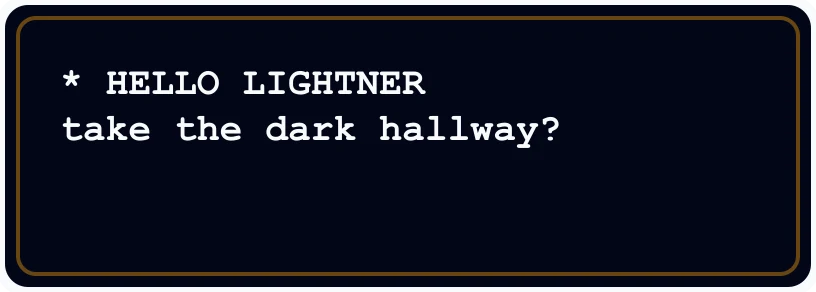
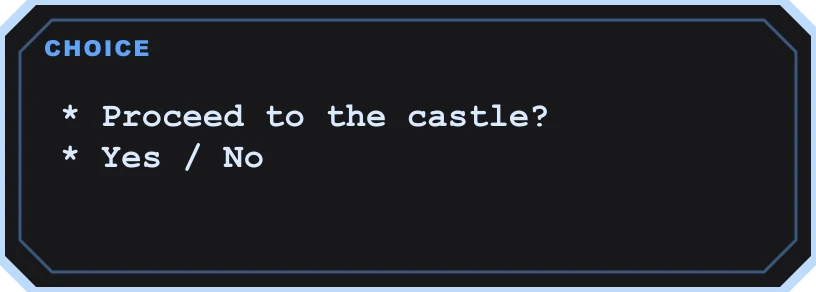
The deltarune text generator builds an original TextKits dialogue or choice box in the browser without loading official sprites, game fonts, or character artwork.
The editor flags automatic wrapping, more than four wrapped lines, weak text-to-box contrast, and speaker labels longer than 20 characters.
Export the current line or a multi-box story as PNG or GIF, copy the image or its alt text, and save the editable setup as JSON.
Enter up to 180 characters for a Dialogue line, or switch to Choice mode to write a prompt with four editable responses and an active heart cursor.
Choose a Classic, Deltarune, Octagonal, or Soft shaded frame, then set the font, colors, portrait, case, and automatic asterisk behavior.
Resolve any crowding, wrapping, long-speaker, or low-contrast notice. Shortening the line or reducing the text size usually creates a cleaner box.
Choose Current line or Story preview, then download PNG or GIF, copy the rendered image or alt text, or save JSON for the current setup.
Original assets
The deltarune text generator is designed for fan captions, profile graphics, tabletop notes, meme drafts, and quick dialogue mockups. It does not bundle official game art, official fonts, or character sprites. The goal is a fast Deltarune-inspired text box that stays honest about what it can export.
This deltarune text generator turns each entry into an original pixel-style dialogue or choice box. Dialogue mode combines a speaker label with formatted text. Choice mode adds four responses and a movable heart cursor, so a question such as “Proceed to the castle?” can be presented as a compact decision screen.
Current line view is useful for one finished textbox. Story view stacks multiple boxes into a sequence and uses the same line settings for preview and export. Start with the two sample lines, then add, duplicate, delete, or reorder entries without rebuilding their colors, frames, portraits, and text effects.
The first sample line starts with Dialogue styling, the second with Dark, and later added lines begin as Choice boxes. These internal styles initialize each line, but there is no preset picker to manage afterward. Use the visible controls to change Dialogue or Choice mode, select one of four frames, and edit the border, fill, accent, type color, font, case, and portrait for each line.
Select part of a line to give only those characters a color, a size from 24 to 56, and Wave, Shake, Jumpy, or Glitch motion. The rest of the sentence keeps its defaults. The asterisk control can stay automatic, be forced on, or be turned off; wrapped dialogue remains aligned with the selected setting.
Warnings appear when a line wraps, approaches four displayed rows, exceeds the clean box capacity, has weak contrast, or uses a speaker name longer than 20 characters. They do not block experimentation, but they identify the exact line or color combination worth fixing before export.
The deltarune text generator exports whichever preview is selected. In Current line mode, PNG, GIF, image copy, text fallback, and alt text describe the active box. In Story mode, PNG and GIF contain the stacked sequence, while the fallback and alt text summarize every line in order. JSON saves the editable configuration rather than a rendered image.
Small, Medium, and Big apply 0.75×, 1×, and 1.35× output scaling. Optional padding adds space around the result. GIF controls can reveal story lines in sequence and type the text character by character; turning those options off produces a simpler animation plan.
Audio and video are not generated. A GIF preserves the tool's visual timing and selection-level motion, but it does not contain dialogue sound or typewriter audio. Use PNG when a still image is enough, and GIF when the reveal itself matters.
Pixel mono, Comic, Papyrus-like, and Symbol are browser-rendered font choices inside the image generator; the page does not install a font file on your device. Because the final letters are pixels in a PNG or GIF, recipients do not need the same font available to view the result.
Portrait choices include None, Blank, Hero, Tough, Soft, and Mystery. These are original TextKits placeholders for layout work. Upload accepts your own portrait image when a custom face is needed, while the Blank option reserves the portrait space without adding a character drawing.
Short, readable boxes work well for a roleplay exchange, tabletop clue, stream overlay, party prompt, scene draft, or joke image. Choice mode is useful for a question with up to four responses; Dialogue mode is better for a speaker and a compact passage. Story mode joins several of those boxes when one line is not enough.
Each individual entry is limited to 180 characters, and only the first four wrapped rows fit cleanly inside a dialogue box. The editor is not a full comic layout program: it does not position panels, draw backgrounds, or create game character art. It does handle a multi-box conversation, including line order, per-line styling, still-image export, and animated reveal.
For a single line, stay in Current line view. Enter the speaker and dialogue, decide whether the leading asterisk should be automatic, and choose a frame. The preview updates immediately, so wrapping and contrast can be corrected before any file is created.
The same focused workflow makes the page useful as a Deltarune dialogue generator or dialogue maker: build one readable box, copy its plain-text alternative or accessibility description, then export only that active line. Story controls can be ignored until a second box is actually needed.
Switch the active line to Choice mode for a proceed-style box. Write the prompt, edit up to four responses, and click the circular selector beside the response that should carry the heart cursor. An Octagonal or Deltarune frame gives the decision a sharper outline, but every frame supports the same option controls.
In the verified test, the prompt “Proceed to the castle?” used “Open the door” and “Turn back” as the first two responses, the Deltarune frame, a Hero portrait, and Big output. The active heart and all four option rows remained part of the rendered choice box rather than being flattened into the prompt text.
Choose Current line before downloading one Deltarune dialogue box PNG, or choose Story preview to stack every line in one taller image. Check the selected Small, Medium, or Big scale and decide whether the export needs padding; neither setting changes the wording or line order.
A verified Big current-line export of the tested Choice box measured 1102 × 520 pixels. The matching animated GIF used the same dimensions and contained 31 frames for that specific prompt and animation setup. Frame count and file size change with the text and reveal options, so the live preview remains the best check for a different design.
Short answers about original textbox styling, font choices, frame controls, PNG/GIF export, mobile use, and the tool's independent fan-made status.