TextKits

Blackout Sensitive Text Fast

Redacted Text Generator

Source Text

83 / 5000
Privacy-first4 matches found

Preview

█████ ██████ | ███████████████ | ██ ███ ███ ████ | ███████ ███████ launches Friday.
83 / 5000
4 matches found matches foundReview matches before sharing.

Mode

Smart Detect Options

Use commas or press Enter to add multiple terms.

Sarah ConnorSkynetProject Phoenix

How does redaction actually work in your browser?

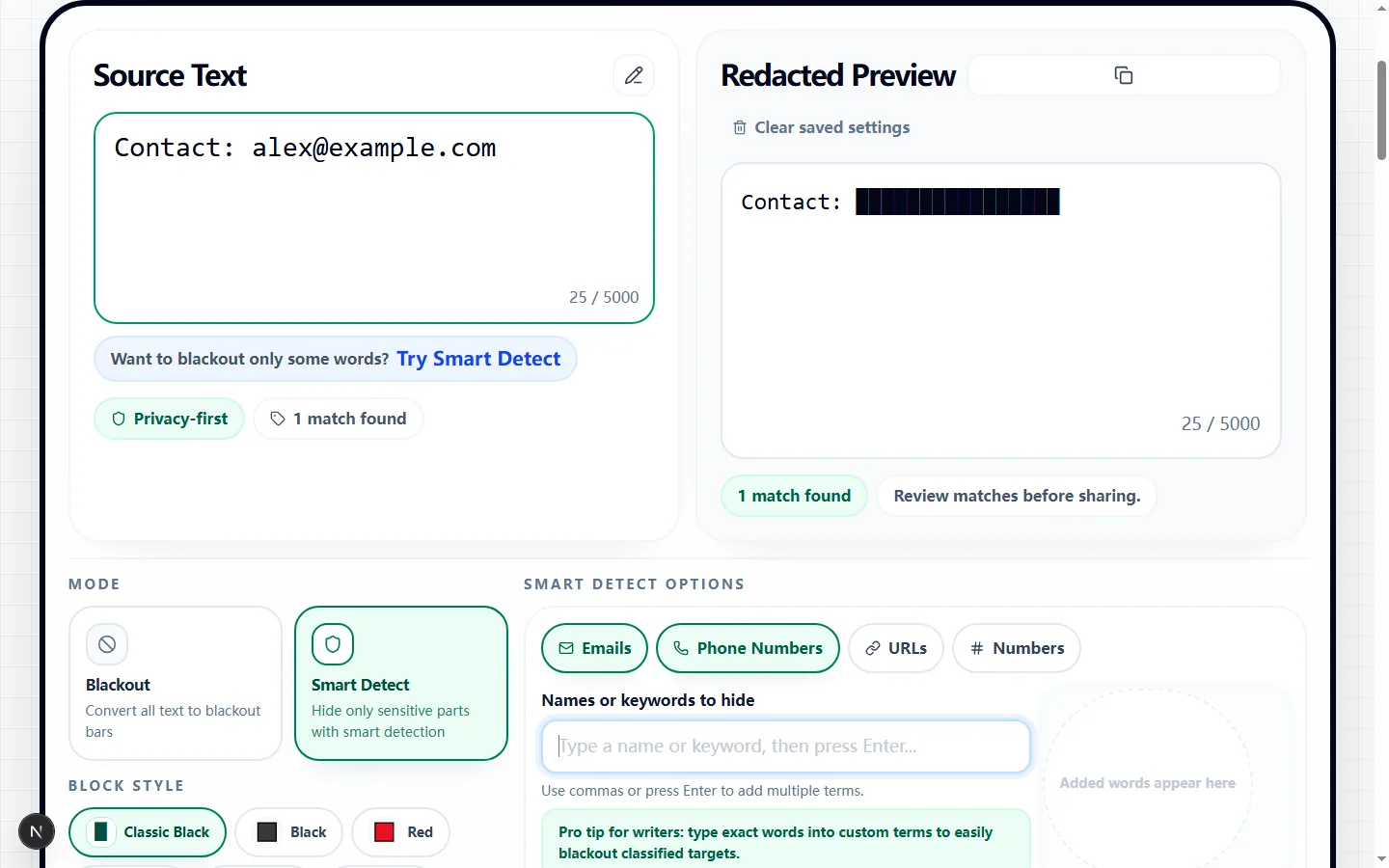
Here is the cool part: this isn't just drawing a black box over an image. Our redacted text generator literally replaces your sensitive words with blackout block characters. That means you can copy the whole message—black blocks and all—and paste it safely into an email or chat.

Instead of forcing you to hunt down every single phone number or email by hand, our smart detection does the heavy lifting. You can even type in your own custom words to hide, making this a redacted text generator that actually works for real-life tasks.

Full Blackout vs. Smart Detection

Sometimes you just want to hide everything. That is what our Full Blackout mode is for. It replaces your entire message with thick black bars.

But most of the time, you want people to read *some* of the text! That is why the Smart Detect mode in this redacted text generator is a lifesaver. It automatically finds emails, phone numbers, and URLs, blacks them out, and leaves the rest of your sentence perfectly readable.

When is the best time to use this?

This tool is amazing for customer support reps sharing ticket examples, developers posting error logs, or anyone trying to share a screenshot or text snippet without leaking personal data.

Because the final text is just a bunch of characters, you always get to review exactly what’s visible before you hit copy and share it with the world.

What this redacted text generator helps with

Use this redacted text generator when you need to hide sensitive parts while keeping the rest of the message readable without opening a heavy editor or learning a special format first. It is made for people who need to share text without exposing names, numbers, links, or private details, so the page keeps the input, preview, and output close together instead of hiding the useful controls behind a setup flow.

That makes the redacted text generator best for quick text jobs like support tickets, customer examples, chat screenshots, notes, drafts, email snippets, and public demos. In those moments, you usually already know the words you want to use. The value is seeing a clean result, adjusting it fast, and moving it into the app, post, sign, server, or document where it belongs.

How the redacted text generator workflow works

The redacted text generator workflow is built around one loop: write the source text, change the style, check the preview, then copy or export the result. The controls cover blackout mode, smart detection, custom terms, live preview, and copy-ready output, which gives you enough range without making the page feel like a full design program.

The live preview matters because small formatting choices can change the result quickly. If the text looks too crowded, too quiet, too strange, or too hard to read, you can fix it before copying. A useful redacted text generator should make those problems visible early, while the text is still easy to change.

Best uses for the redacted text generator

The strongest results usually start with short, clear text. A redacted text generator can change the presentation, but it cannot rescue a message that is too long or confusing before the styling begins. Keep the source sentence simple, then use the tool to shape the final look.

This is especially important when the output is going into a public place such as a profile, chat, caption, booth, board, or server announcement. The redacted text generator should add the effect you want while keeping the message easy to understand at the speed people will actually read it.

Tips for cleaner redacted text generator results

The fastest way to improve a result is to test a plain version first. Type the message, make one basic output, and ask whether it already solves the job. After that, add more style only where it helps. This keeps the redacted text generator useful for real copy-paste work instead of turning every result into a noisy experiment.

For most users, the practical rule is: review the preview before copying, especially when names or custom phrases matter. That habit makes the redacted text generator more reliable, especially when another person needs to read the result quickly. The tool can generate options, but the final choice should still feel intentional.

What to check before using the output

Before you leave the redacted text generator, look at the preview and ask one plain question: would someone understand this immediately? If the answer is no, shorten the source text, lower the intensity, or choose a simpler setting. The best output usually feels obvious, not overworked.

There is also one practical warning: automatic detection helps, but private information still deserves one final human check. That does not make the redacted text generator less useful. It just means the safest workflow is to copy or export the result, test it once in the target app, and make one final adjustment if the platform displays it differently.

Why the redacted text generator stays practical

A practical redacted text generator should save time at the handoff point. You should be able to try a few versions, keep the one that works, and avoid rebuilding the same phrase by hand. That matters most for small text tasks where the goal is not a perfect design file, but a result you can use right away.

It also helps when you are comparing ideas. Keep one source line, change the settings, and let the redacted text generator show the differences. Small shifts in size, style, color, intensity, or formatting can change the tone of short public text, and comparing those versions in one place makes the final choice easier.

Common redacted text generator mistakes to avoid

The biggest mistake is treating the effect as the whole message. If every setting is pushed to the maximum, the output may look busy but stop communicating. Use the redacted text generator to support the words, not bury them.

Another mistake is assuming every destination will display the result exactly like the preview. Keep a plain backup of the original text, paste the output into the target app once, and adjust if needed. That small check makes the redacted text generator more dependable for real use and keeps the workflow focused on the actual next step.

Redacted text generator FAQ

Got some privacy concerns? Here are the most common questions people ask before sharing their blacked-out text.

Can I just copy the blacked-out text and paste it somewhere else?+
Absolutely! That is the whole point of our redacted text generator. The black bars are actually text characters, so they will paste perfectly into Slack, email, or a Google Doc.
Is it possible to hide just one specific word in a sentence?+
Yes! If our automatic detection misses it, just type that specific word into the custom terms box. We will black it out and leave the rest of your sentence alone.
How do I add my own custom words to redact?+
It's super easy. Just type your word into the control area, hit Enter (or type a comma), and it instantly turns into a little chip. The page will immediately black out that word anywhere it appears in your text.