Count, inspect and review
Sentence Counter
Paste your text to see how many sentences it contains.
0 / 200,000 character units
Whole document
0 words · 0 characters
Paste or type to count sentences.
Sentence review · 0 sentences
Import & voice
Goals & limits
Statistics & reports
Drafts & recent counts
How many sentences is this?
Type or paste into the text box. The sentence count updates as you edit, with word and character totals beside it. An empty box shows zero. Try either example to see a short passage or text containing abbreviations and decimal numbers.
Open Sentence review to inspect the numbered breakdown. Select a row to find that sentence in your text, or jump to the longest one. The table shows 20 rows at first; Show more reveals the next group. The totals still include the whole passage.
Copy text preserves your writing. Copy stats produces a labelled summary, while CSV saves a sentence-by-sentence table. Use Clear when you want to start again; Undo and Redo let you step through recent edits.
How the sentence counter handles punctuation
The online sentence counter looks for sentence-ending punctuation, including periods, question marks and exclamation marks. A run such as “?!” forms one ending. Closing quotation marks and brackets stay attached to the sentence. Text with words but no final punctuation counts as one unfinished sentence; punctuation alone does not.
Periods need special care. “Dr. Green paid 3.14 dollars.” contains one sentence, even though it has several dots. Common titles, initials, decimal numbers and web addresses receive special handling. Less common abbreviations, dialogue and unusual punctuation can still produce a split you would change.
These are text-boundary rules, not a test of grammatical correctness. A fragment can count as a sentence, and a long run-on can remain one sentence. Check the actual breakdown when a count matters for an assignment or publication.
Check and correct the split points
If two pieces belong together, choose Merge with next on the first row. To separate a passage, place the cursor at the intended boundary in the input and choose Split at cursor. Both resulting parts need text; an empty fragment is not useful as a sentence.
Manual changes update the sentence counter, lengths and exported report together. Reset boundaries returns to automatic detection. Editing the source clears those corrections, since added or deleted characters could move the points you chose. Review the new breakdown before copying the result.
This is useful for unfamiliar abbreviations or dialogue where punctuation leaves room for interpretation. It gives you a way to record your intended boundaries without rewriting the passage or pretending an automatic rule is always right.
Review sentence lengths and a selected passage
Average length can reveal a passage made mostly of very short sentences or several long ones. The longest and shortest results help you find examples quickly. The rhythm view shows lengths in their original order; it is a visual guide, not a score for writing quality.
Set a long-sentence threshold and filter the review list to locate sentences above it. The short filter works the same way. Filtering changes the rows you inspect, while the main totals and full CSV continue to describe the whole document.
To count sentences in just one paragraph, highlight it in the input and choose Count selection. The selection result is labelled separately, so it cannot be mistaken for the document total. An optional target sentence count shows how far your passage is from the number you entered.
Import a document and keep a report
You can use this sentence counter tool with local TXT, Markdown, RTF, DOCX, ODT and PDFs that contain selectable text. Import removes formatting and fills the editor. Check the extracted text: columns, footnotes and unusual document layouts may need adjustment before counting.
Files are limited to 5 MiB, PDFs to 100 pages and the input to 200,000 character units. Some symbols use two units. Oversized input is rejected rather than silently shortened. Scanned PDFs, encrypted documents, pictures and older binary DOC files are outside the supported formats.
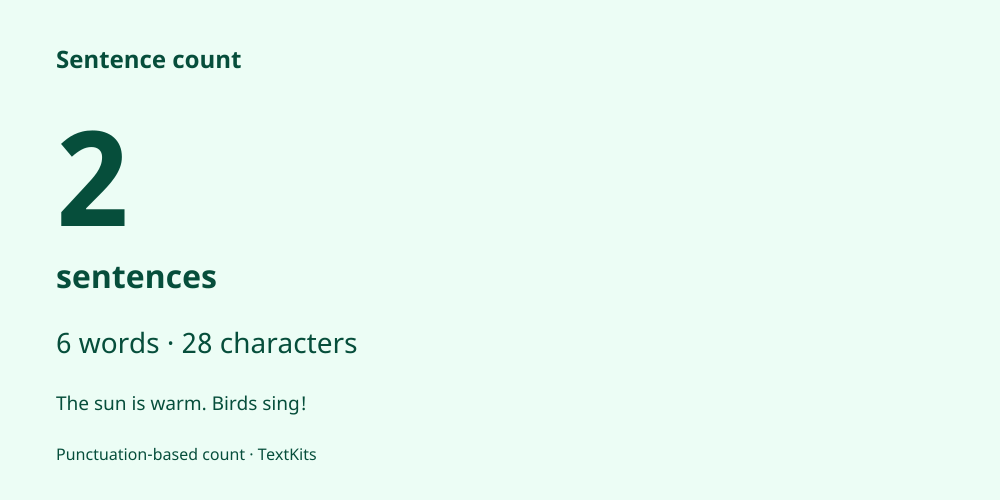
For a reusable result, copy statistics, copy the table or download CSV. Print opens a report you can inspect in your browser's print preview. PNG saves a count card containing the current figures and a short text excerpt. A report label helps identify the passage without changing its count.
Processing, drafts and estimates
Counting and file reading run in your browser. Save draft stores text in this browser only when you choose it; drafts are not restored automatically. You can load or delete a saved draft, and clear recent count-only history separately. Website analytics and advertising are covered by the site's privacy policy.
Dictation and read-aloud controls depend on browser support and start only after a click. Dictation may send audio to your browser's speech service. It is separate from local document counting and does not transcribe an uploaded recording.
Reading and speaking times use stated word-per-minute rates. English readability figures estimate syllables and sentence length; they cannot judge understanding or writing quality. Other languages and mixed scripts can need different rules.
For case changes, use the Lowercase Text Generator. For arranging list entries, open Alphabetize This List. Browse All Text Tools for other text tasks.