Spiral Text Generator
Wind a name, quote or short message into a spiral.
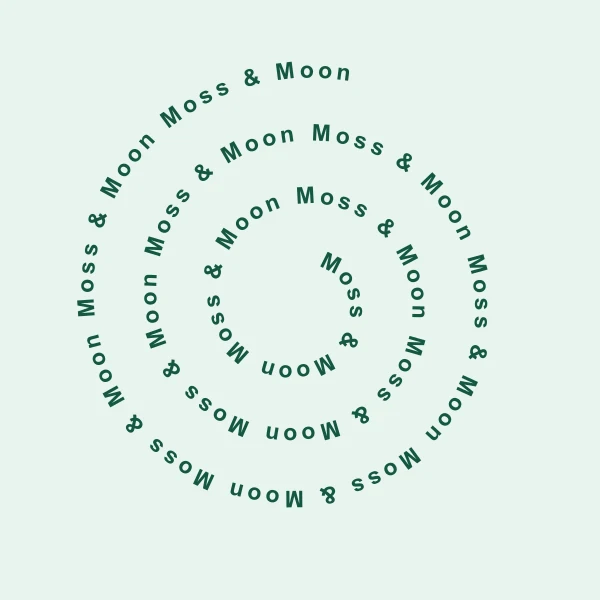
Design preview
Path and fit
Effective center radius 44 px. Average turn gap 63 px.
Type and font
Up to 3 MB. Read in this browser. Some SVG viewers substitute live fonts.
Insert symbol
Artwork style
Export settings
600 × 600 px
Create Spiral Text in Four Steps
- Enter your phrase. Replace the example with your own words. Try a pair of names for a compact design or a few short sentences for a spiral with more turns.
- Set the path. Choose a round or elongated spiral and decide whether the phrase begins near the center or at the outer edge. Change the winding direction to see the letters turn the other way.
- Make room for the words. Adjust the font size, the gap between turns or the number of turns. If the last words fall off the end, try Fit text and check the result. Your original input stays available.
- Choose a file. Download a PNG for a fixed image, an SVG for a scalable design or a PDF with a paper size for printing. Check the outermost letters against the preview frame before downloading.
Make the First Turn Easy to Read
A spiral layout can fit the full phrase while the inner turn still feels crowded. Look at the letters closest to the center first. Increasing the center opening gives those letters a gentler curve. With center protection active, the start can move outward when the type needs more room. That change leaves less path for the remaining words, so check the placed count again after adjusting the opening.
Winding and reading order are separate choices. Winding controls which way the path bends. Reading order sets the end where the phrase starts. Turn on the reading guide while you adjust both, then use the turn guides to check the gap between nearby lines. The guide marks stay in the editor.
For a repeating pattern, add a dot, star or space between copies of the phrase. Use even spacing to distribute complete repeats along the available path. A short phrase with a clear separator is easier to follow around several turns than a long line of unbroken words.
Frame and Download the Design
Try a square for a label, a taller frame for a poster, or a wide frame when the artwork needs room beside another element. The preview shows the canvas framing. Turn on the trim guide and check the estimated PNG dimensions before choosing a larger download.
Leave breathing room around the outer turn of a small name label so the edge doesn't feel cramped. For a longer quote, use a straight title and subtitle to give the reader a place to start before moving on to the winding text.
Choose a transparent PNG to place the lettering over another background. SVG is useful when you need to scale the design. If the file contains live text, the font can look different in another viewer. A PNG fixes the appearance as pixels. For a printout, pick a paper size and leave a margin around the artwork. Check the print preview before printing an entire batch.
Copy a Spiral Text Symbol or Character Spiral
If you need plain characters you can paste directly into a bio or chat, switch to Text. Copy an individual spiral mark, frame your words with symbols, or make a small spiral out of characters. A decorated line such as 🌀 Moss & Moon 🌀 works well in a single-line field, though emoji colors and glyph shapes vary by device.
The character spiral is built from rows of characters, spaces and line breaks. Paste those rows into a monospaced code block or another field that preserves spacing. Choose a narrow grid if the destination wraps long lines. If the message box trims spaces or uses proportional lettering, a one-line decoration is easier to read.
Copy PNG puts the rendered artwork onto your clipboard when your browser supports image copying. Use the image or a download to keep the angle, color and spacing of the artwork. The copy buttons in Text provide characters and line breaks.