Fast workflow
How to generate Minecraft pixel art from an image
The Minecraft pixel art generator begins with the part that matters most: the image. Choose a PNG, JPG, WebP, or GIF from your device and the page reads it locally into a small canvas. Nothing needs to leave the browser for the core workflow. Once the image is loaded, the tool resizes it to the block dimensions you choose, samples the pixels, and matches every square to the nearest block color in the selected palette.
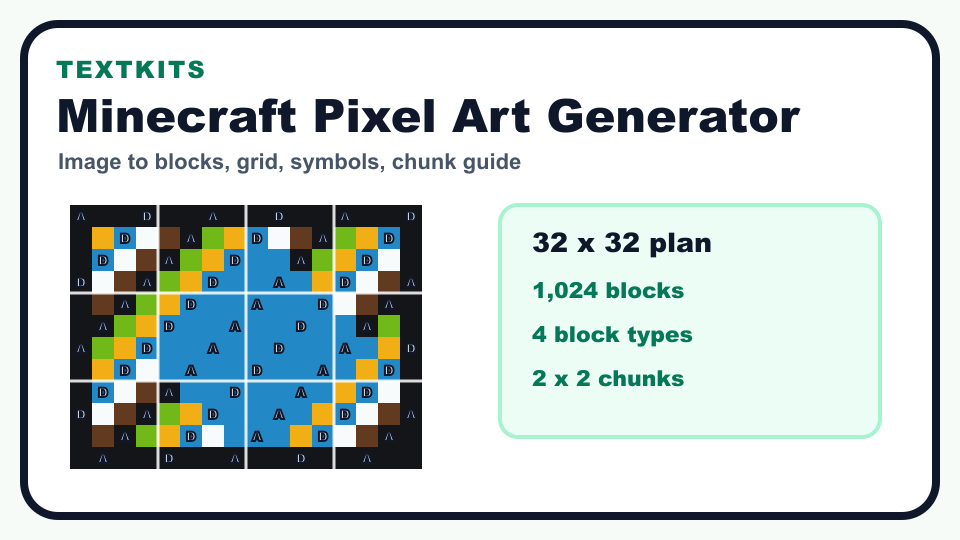
Start with a small plan if you want a build that is easy to finish. A 16 x 16 logo uses 256 blocks, a 32 x 32 icon uses 1,024 blocks, and larger plans quickly become real construction projects. The preset buttons make those jumps visible, while custom width and height fields let you fit banners, map-style layouts, or tall characters without guessing.
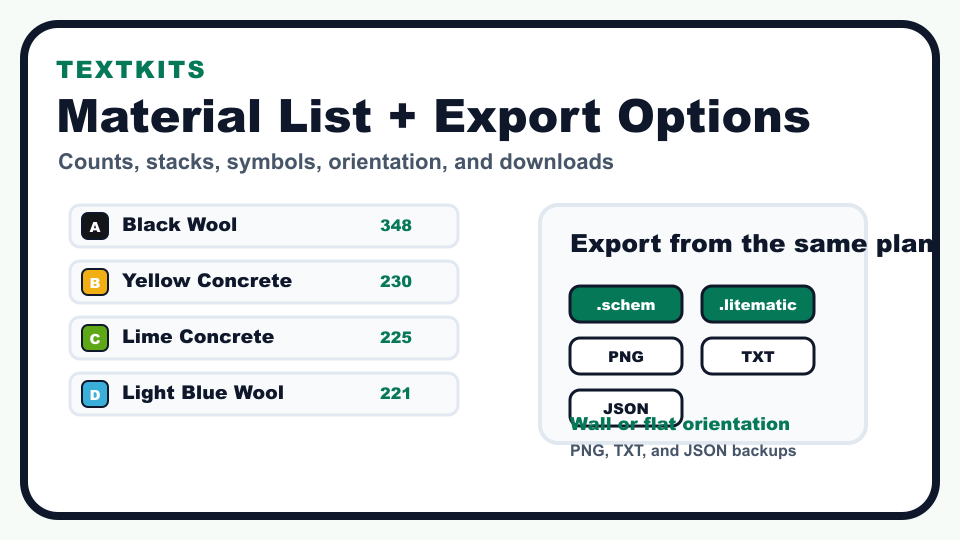
The preview is designed for building, not just looking. Thin grid lines show every block, brighter chunk lines appear every 16 blocks, and symbol labels help separate colors that look close on screen. That makes the exported PNG useful as a second-screen build guide beside the TXT material list.