01
Type your message
Enter the exact name, direction, number, or cue that someone must read quickly. The editor keeps up to 200 characters, but the visual board renders no more than six fitted lines, so short wording is safer for display.
Use this larger text generator to turn a pickup name, room number, or short cue into a big text display. Adjust the board, then present it full screen or download it as PNG or SVG.
Adjust the board, then present it full screen or download it as PNG or SVG.
Message
15 / 200
Layout
Text Size
150%
Alignment
Edge Space
Text Color
Background
Runs locally in your browser.
Enter the exact name, direction, number, or cue that someone must read quickly. The editor keeps up to 200 characters, but the visual board renders no more than six fitted lines, so short wording is safer for display.
Choose 16:9 Landscape or 9:16 Portrait, set Text Size from 50% to 300%, and select alignment, edge space, text color, and background. The fitted font can become smaller than the selected percentage when the message needs more room.
Read every line in Live Preview and check the Resolution, Text size, and Optimized line-count cards. If wording is missing or split awkwardly, shorten it or reduce the size before using this larger text generator as a sign.
Copy Text keeps the plain editor message. Full Screen presents the current board, while Download PNG and Download SVG save the six-line visual result at the active landscape or portrait resolution.
This page is a text displayer for short messages that need to occupy a screen: pickup names, room numbers, queue calls, presentation cues, and simple directions. It produces a static big text board rather than decorative Unicode lettering.
A larger text generator cannot determine a universal viewing distance. Screen size, brightness, contrast, reflections, and the reader's vision all affect legibility, so the final board still needs a real distance check.
Live Preview uses the same generated SVG board that Full Screen presents and that the PNG/SVG actions export. Landscape uses 1600 by 900; portrait uses 1080 by 1920. Automatic fitting responds to the message, layout, selected percentage, and edge space.
In a measured test, “PICKUP HERE — GATE 7” at 180%, centered with Medium edge space, became two lines at a fitted 230-pixel font size on the 1600-by-900 board. That result demonstrates why the percentage is a target control, not a promise of a fixed output font size.
Use a full screen text display when speech would be hard to hear or a short visual cue is faster: meeting-room directions, pickup identification, a numbered queue, a stage cue, or a temporary notice. Keep confidential information out of a board that will face a public area.
For accessibility, write the important words directly instead of relying on color alone. A high-contrast large text display can improve visibility, but it is not a substitute for testing the actual device, distance, lighting, and audience needs.
Tested on the live tool
This example uses the kind of compact direction that benefits from fullscreen presentation, high contrast, and generous space around the words.
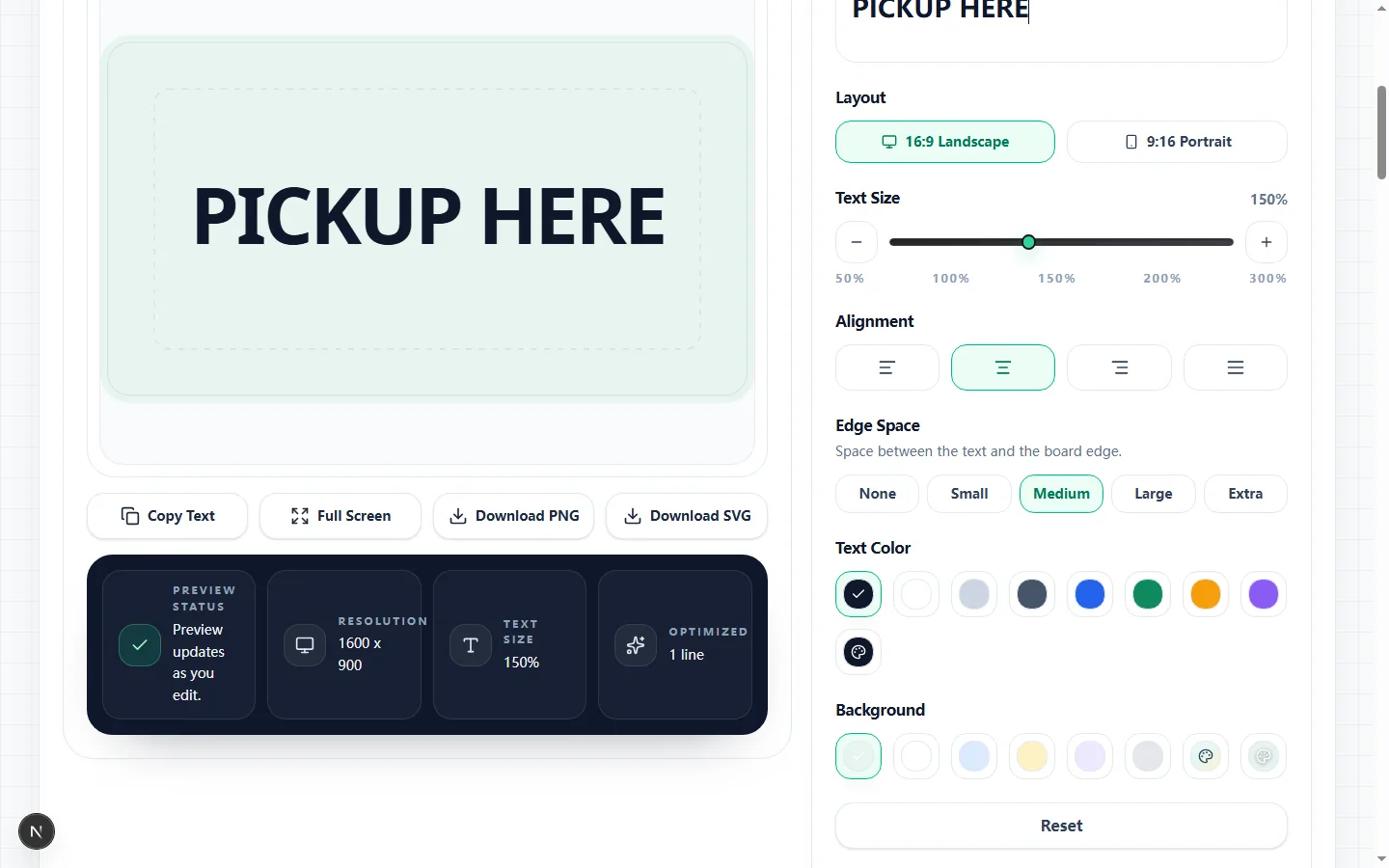
Start with the words someone must understand at a glance, then choose the board shape. The larger text generator stores up to 200 characters and updates the big text display while you edit, but its SVG preview and image exports include only the first six fitted lines.
This boundary matters: in a test with 200 consecutive characters, the editor and Copy Text preserved all 200, while the visual board rendered 126 characters across six lines and omitted the remaining 74. Treat the character counter as an input limit, not proof that the complete message fits on screen.
The Text Size control runs from 50% to 300% in 10% steps. It sets a target before the board fits text to the available width and height. Words wrap, long unbroken strings can split, and visual output stops after six rendered lines.
Edge Space offers five pixel insets: None 24, Small 72, Medium 132, Large 220, and Extra 320. More inset protects text from a bezel or crop but reduces usable area, which can shrink the fitted letters or create more lines.
Choose Left, Center, Right, or Spread alignment. The editor provides eight text-color presets, seven background presets, and custom pickers for both. Preview updates immediately, so check line position after changing orientation or edge space.
Use contrast to support the message rather than decoration alone. In the measured landscape sample, white text on #0f172a remained easy to distinguish in the preview; the same colors still need checking on the actual screen and brightness setting.
Copy Text copies the full plain message retained by the editor, including text that may fall beyond the board's six-line display boundary. It does not carry size, alignment, edge space, or color. Full Screen presents the current generated board in the browser.
PNG and SVG save the displayed board, not an unrestricted 200-character document. PNG is a raster file; SVG keeps scalable vector markup. Landscape exports use 1600 by 900 and portrait exports use 1080 by 1920, so inspect the downloaded file for omitted wording before sharing it.
Open Full Screen on the device that will act as the big screen text display, stand at the intended viewing position, and read the smallest line. Check reflections, brightness, contrast, line breaks, spelling, and whether important words remain inside the safe-area guide.
Also open the downloaded PNG or SVG in the destination app. Messaging, slide, and print software can scale or crop a file after export. If any phrase is absent from the visual output, shorten the editor message; Copy Text retaining it does not make it part of the image.
Got questions? Here are quick answers to the most common things people ask before putting their big signs on display!