1
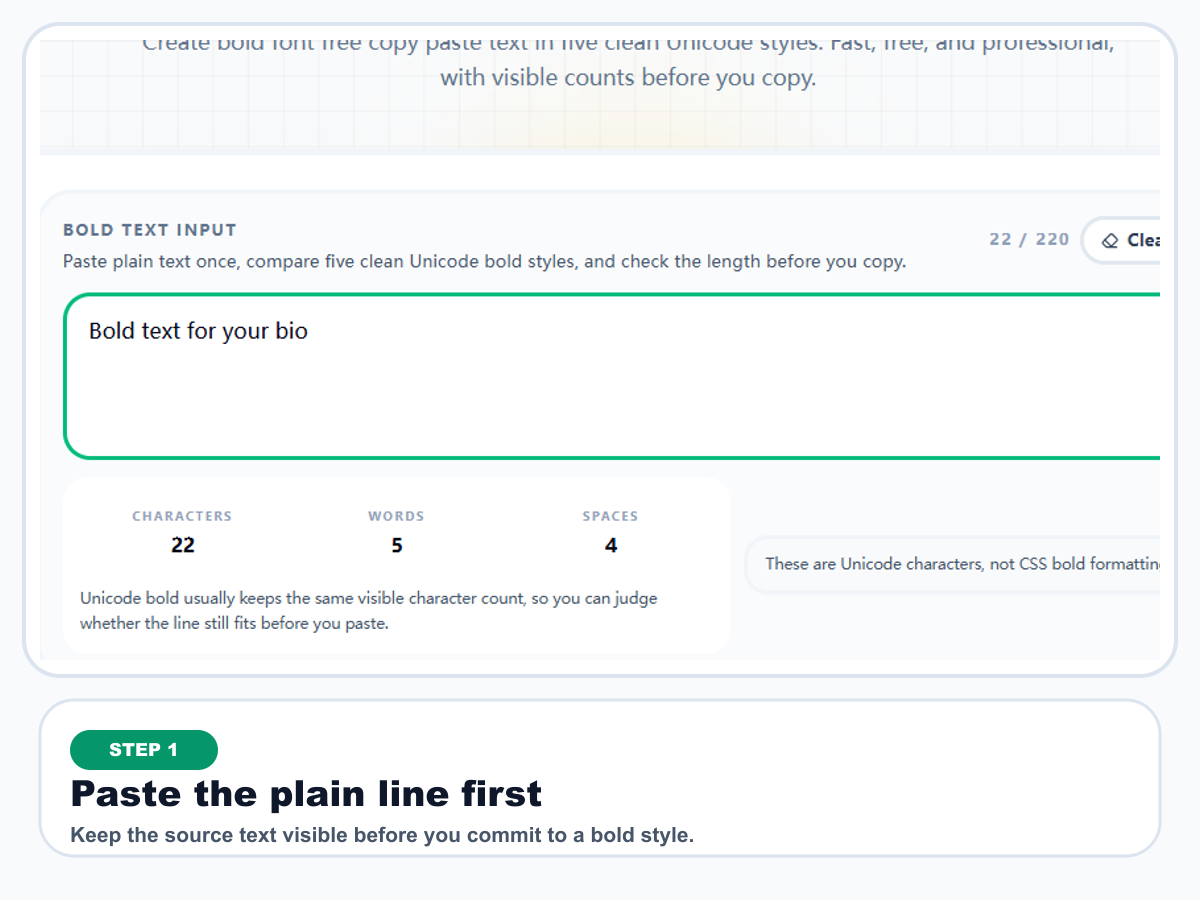
Type or paste plain text
Start with the exact words you want to emphasize. Keep the original line plain first, then let the tool generate the bold variants after one paste.
Five Unicode Bold Styles
Generate bold Unicode text instantly, compare five styles, and copy the one that fits.
Start with the exact words you want to emphasize. Keep the original line plain first, then let the tool generate the bold variants after one paste.
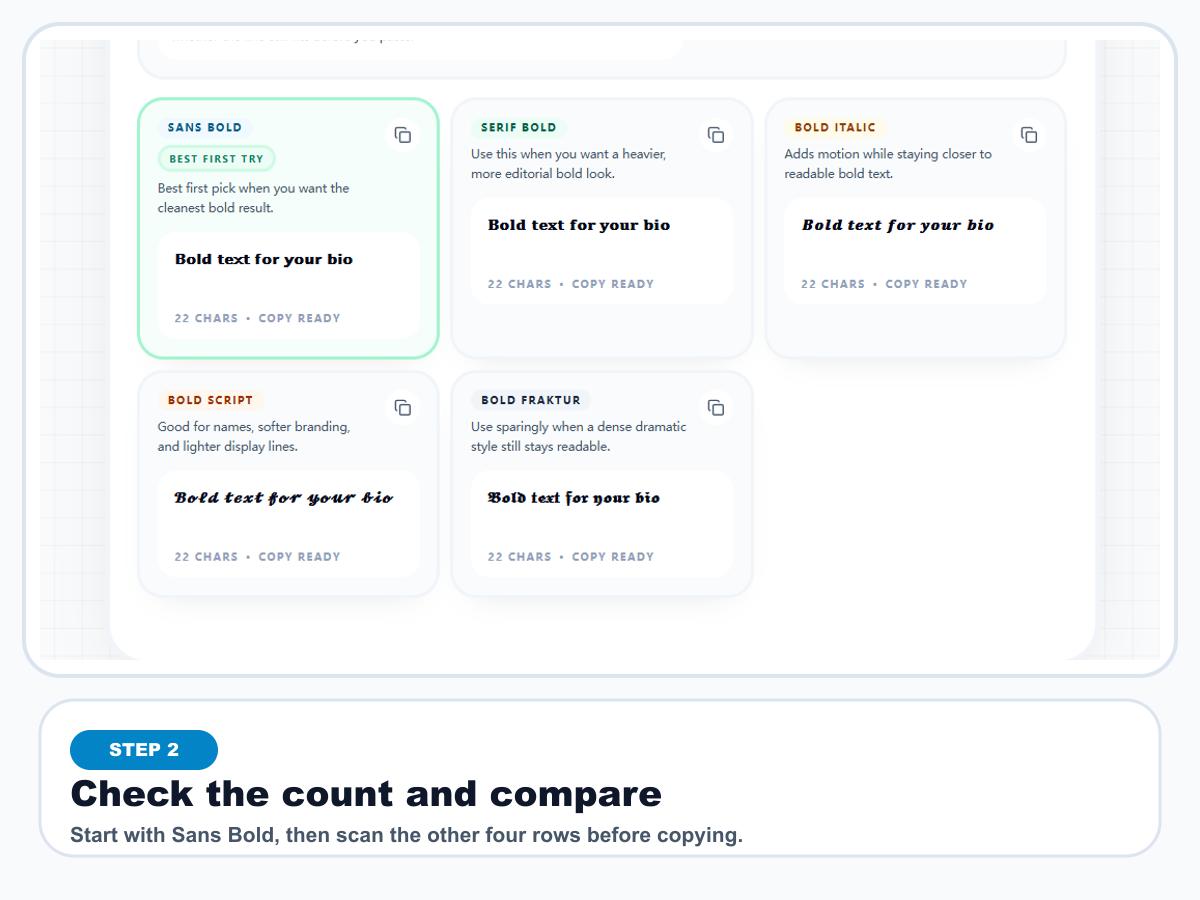
Start with Sans Bold, then scan Serif Bold, Bold Italic, Bold Script, and Bold Fraktur. Check the visible count while you compare so the line still fits where it will be pasted.
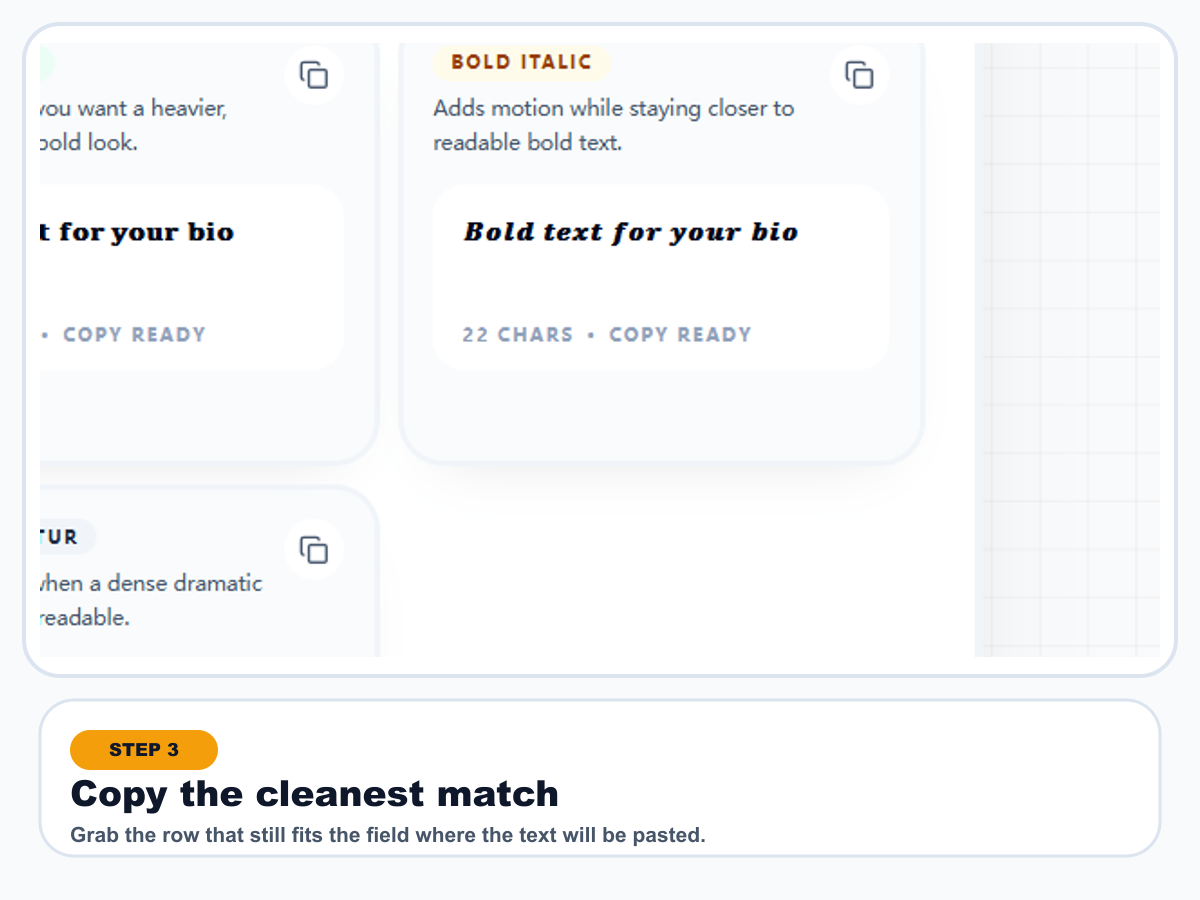
Use the row-level copy button once the style looks right. The fastest workflow is still one short line, one quick comparison, and one clean paste into the target app.
Use the bold Unicode rows above as a Facebook bold text generator for short posts, comments, bios, or profile lines. Copy the style that stays readable, then paste it into Facebook like normal text; the result is Unicode copy-paste text, not an official Facebook formatting feature or a guarantee that every device will render every style the same way.
This page does not apply CSS or Markdown bold. It converts your letters into Unicode characters that already look bold when copied, which is why the result works best in bios, captions, usernames, comments, and other tight text fields that do not offer a native bold button.
If your immediate use case is specifically Facebook in French, go straight to our French guide to bold Facebook text. That page stays tighter around posts, comments, and Messenger flows.
Start with Sans Bold when readability matters most. Move to Serif Bold when you want more contrast, Bold Italic when you want a little motion, Bold Script for softer branding, and Bold Fraktur only when the line is short enough to carry a denser display look.
That order keeps the workflow fast. If you want a wider gallery after the five bold families here, open our styled text font generator. If you want a blackletter-heavy route first, try our old-timey text generator.
Bold styles stay strongest on short phrases. The safest habit is to keep your plain-text source nearby, compare only a few variants, and copy the cleanest row once it still looks readable in the destination field.
If the styled result is already out in the wild and you need the clean version back, go straight to our tool to convert this font to normal. That gives you a plain-text base again before you rewrite or republish the line.
Paste plain text once, compare five clean Unicode bold styles, and check the length before you copy.
Unicode bold usually keeps the same visible character count, so you can judge whether the line still fits before you paste.
Best first pick when you want the cleanest bold result.
𝗕𝗼𝗹𝗱 𝘁𝗲𝘅𝘁 𝗳𝗼𝗿 𝘆𝗼𝘂𝗿 𝗯𝗶𝗼
Use this when you want a heavier, more editorial bold look.
𝐁𝐨𝐥𝐝 𝐭𝐞𝐱𝐭 𝐟𝐨𝐫 𝐲𝐨𝐮𝐫 𝐛𝐢𝐨
Adds motion while staying closer to readable bold text.
𝑩𝒐𝒍𝒅 𝒕𝒆𝒙𝒕 𝒇𝒐𝒓 𝒚𝒐𝒖𝒓 𝒃𝒊𝒐
Good for names, softer branding, and lighter display lines.
𝓑𝓸𝓵𝓭 𝓽𝓮𝔁𝓽 𝓯𝓸𝓻 𝔂𝓸𝓾𝓻 𝓫𝓲𝓸
Use sparingly when a dense dramatic style still stays readable.
𝕭𝖔𝖑𝖉 𝖙𝖊𝖝𝖙 𝖋𝖔𝖗 𝖞𝖔𝖚𝖗 𝖇𝖎𝖔
Runs locally in your browser.